Can Your Phone Become a Primary Development Tool? A Real-World Test
Sunday afternoon. Couch. Cup of coffee. You pick up your phone — and just like that, you write the code, run the tests, and ship to production?
Sounds a bit far-fetched. Everyone knows phones aren’t development machines. They’re fine for checking docs, watching CI status, or firing off a quick PR comment in a pinch — but real development work, writing code, debugging, deploying, verifying results, still means sitting back down at a computer.
That’s what I always thought, until I came across Claude Code’s Remote Control feature.
This post is the record I wrote after actually getting it to work on a real project of mine.
The Short Answer First
Yes, it works. Once everything is set up, the experience looks something like this:
You’re lying in bed scrolling your phone at night when it hits you — SourceLens is missing a sharing mechanism. Users ask a question, get an answer, and there should be a way to generate a public link so they can share it with others. It’s a complete feature: the backend needs a share table, short link generation, and permission handling; the frontend needs a share button and a landing page; and you need to think through link expiration. In the past, this kind of requirement would have to wait until you were back at your desk with several tabs open.
Now you describe the need to Claude. It asks you to confirm details one question at a time, then starts writing code, creating tables, running tests, and opening a PR. You review the PR from bed, say “change this part,” it makes the change and keeps running. By the next morning’s commute, the feature is already merged.
Same thing with this blog — before, going from idea to published post could take days: organizing thoughts, writing a draft, formatting, pushing to WeChat Official Account, syncing to other platforms. Now I describe my ideas to Claude on my phone, it helps me structure and draft the post, I refine it during my commute, and everything is published before I reach the office.
The whole thing without touching a laptop. Of course, it’s not as simple as installing an app — there are a few prerequisites that have to be wired up in advance, and skipping any one of them breaks the whole flow.
What I Used to Test This
I chose this blog as the test project.
Not because it’s simple — quite the opposite. Getting a post from written to published involves: writing Markdown locally, Hugo build preview, git commit and push, GitHub Actions auto-deploy to the server, and finally syncing to WeChat Official Account. Any step can break, and each step’s result needs to be verified.
If the phone can run this entire pipeline smoothly, I’d have a pretty good answer to the question.
Get Clear on Claude’s Role First
Before getting into the specifics of setup, there’s one thing worth calling out on its own: everything in this environment can be set up by Claude itself.
The CI/CD config for the preview environment, debugging SSH authentication, installing and using tmux — you don’t need to know all of this beforehand. You just need to know what you’re trying to build and why. Hand the rest to Claude and let it walk you through it step by step.
That’s actually the main point of this post: explain the thinking, not write an operations manual. Once the logic is clear, Claude is your implementation tool.
Three Things You Have to Get Right
1. Results Must Be Visible on Your Phone
This is the step most often skipped — and the most common place to get burned.
A lot of people jump straight to setting up Remote Control, then Claude says “done,” and you open your phone to… nothing. Because localhost:1313 simply doesn’t work on a phone. You’re coding blind.
There’s only one fix: before you do anything else, set up a preview environment your phone can actually access.
My approach was to split the publishing pipeline into two tracks:
push to main branch  →  auto-deploy to preview.sunqi.site (preview, includes drafts)
git tag v*           →  auto-deploy to sunqi.site (production)
Every commit triggers CI, and you open the preview URL on your phone to see the real rendered result. When it looks good, tag it, and production deploys automatically.
The GitHub Actions config for this — two separate workflows:
# .github/workflows/preview.yml
name: Deploy to Preview
on:
  push:
    branches: [main]
jobs:
  preview:
    runs-on: ubuntu-latest
    steps:
      - uses: actions/checkout@v4
        with:
          fetch-depth: 0
      - name: Build
        run: hugo --gc --minify --buildDrafts
      - name: Setup SSH
        run: |
          mkdir -p ~/.ssh
          echo "${{ secrets.SSH_PRIVATE_KEY }}" > ~/.ssh/id_rsa
          chmod 600 ~/.ssh/id_rsa
          echo "StrictHostKeyChecking no" >> ~/.ssh/config
      - name: Deploy
        run: |
          rsync -avz --delete \
            -e "ssh -p ${{ vars.REMOTE_PORT }} -o StrictHostKeyChecking=no" \
            public/ \
${{ vars.REMOTE_USER }}@${{ secrets.REMOTE_HOST }}:${{ vars.REMOTE_PATH_PREVIEW }}/Gotcha: In your CI config,
REMOTE_HOSTmust be the server’s real IP address — not a domain name. If the domain goes through a CDN like Cloudflare, SSH requests will hit the CDN node and time out. I spent a fair amount of time tracking down that one.
2. Authentication Must Be Wired Up
With a preview environment in place, Claude can “see the results.” But how much it can actually do for you depends on what access you’ve given it.
Auth isn’t optional — it’s a prerequisite for Claude being able to execute anything on your behalf.
SSH Key — lets Claude SSH directly to the server to check logs, restart services, and debug deployment issues, without you having to relay anything:
ssh-copy-id -i ~/.ssh/id_rsa.pub user@your-server
ssh user@your-server "echo ok"   # verify passwordless login
GitHub CLI — lets Claude operate directly on the repo: check Actions logs, trigger reruns, set variables, manage PRs:
gh auth login
gh auth status   # verify
With both of these in place, Claude’s effective capabilities are in a completely different league. To use this post’s own debugging process as an example: CI deploy failed, Claude ran gh run view to pull the logs, identified the cause, modified the workflow, and re-triggered the run — I watched the whole thing play out on my phone, stepping in only at key decision points to say “go ahead” or “try a different approach.” Without auth set up, every one of those steps would have been manual.
3. Sessions Must Stay Continuous
This point gets overlooked most often, but it determines whether the phone can genuinely fit into your workflow.
If you run claude directly in a terminal, closing the window kills the process. Use tmux to keep Claude Code running in the background — disconnecting from the network, switching apps, locking the screen, none of it matters:
tmux new-session -s dev      # create a persistent session
cd ~/my-project
claude                       # start Claude Code
/rc                          # enable Remote Control (or /remote-control)

# Ctrl+B → D  detach from session (process keeps running)
# tmux attach -t dev  reattach later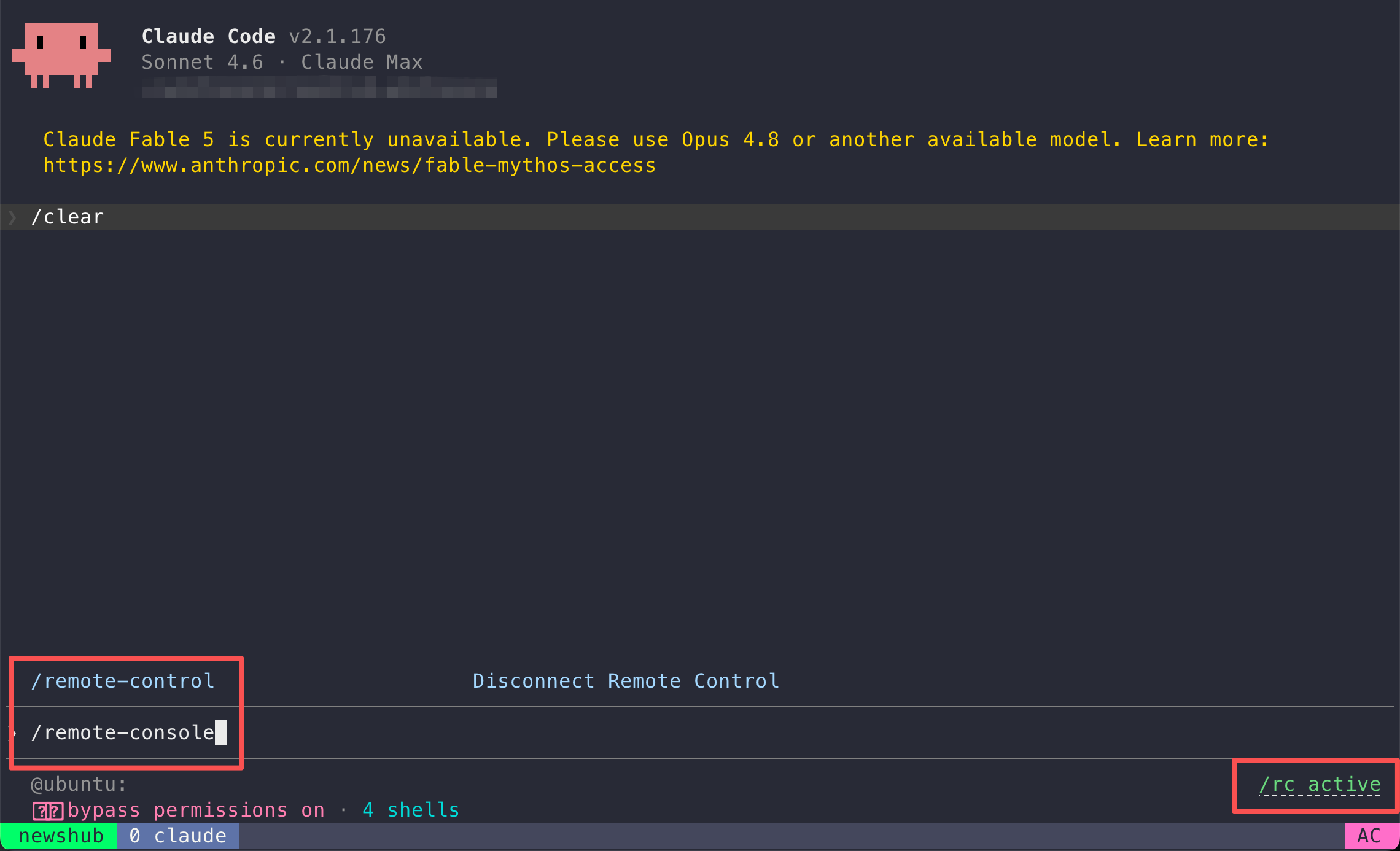
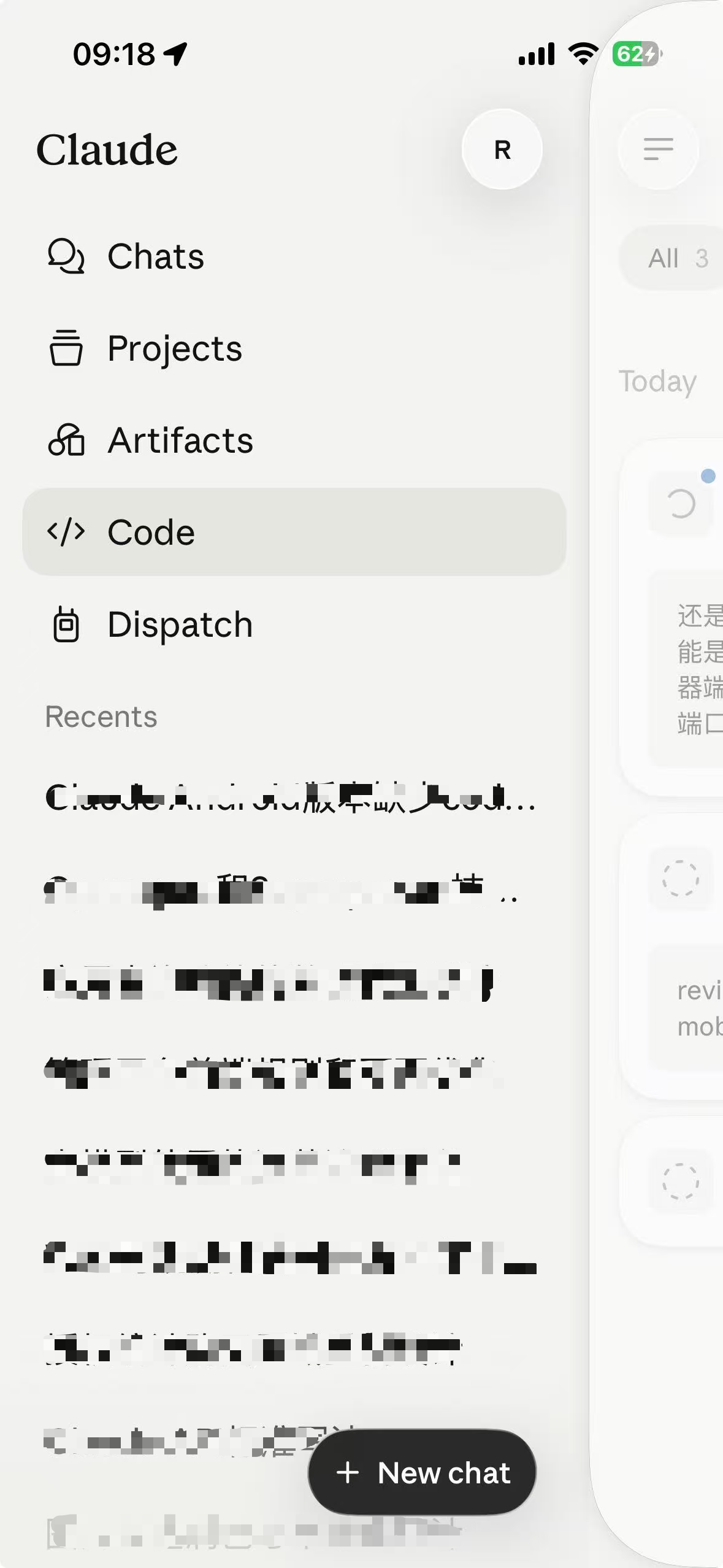
Once enabled, tap the icon at the top of the Claude App or desktop client and go to the Code page. You’ll see the list of remote sessions — find the right one and tap in to take over directly.
Once inside a session, the mobile interaction interface is identical to the desktop:
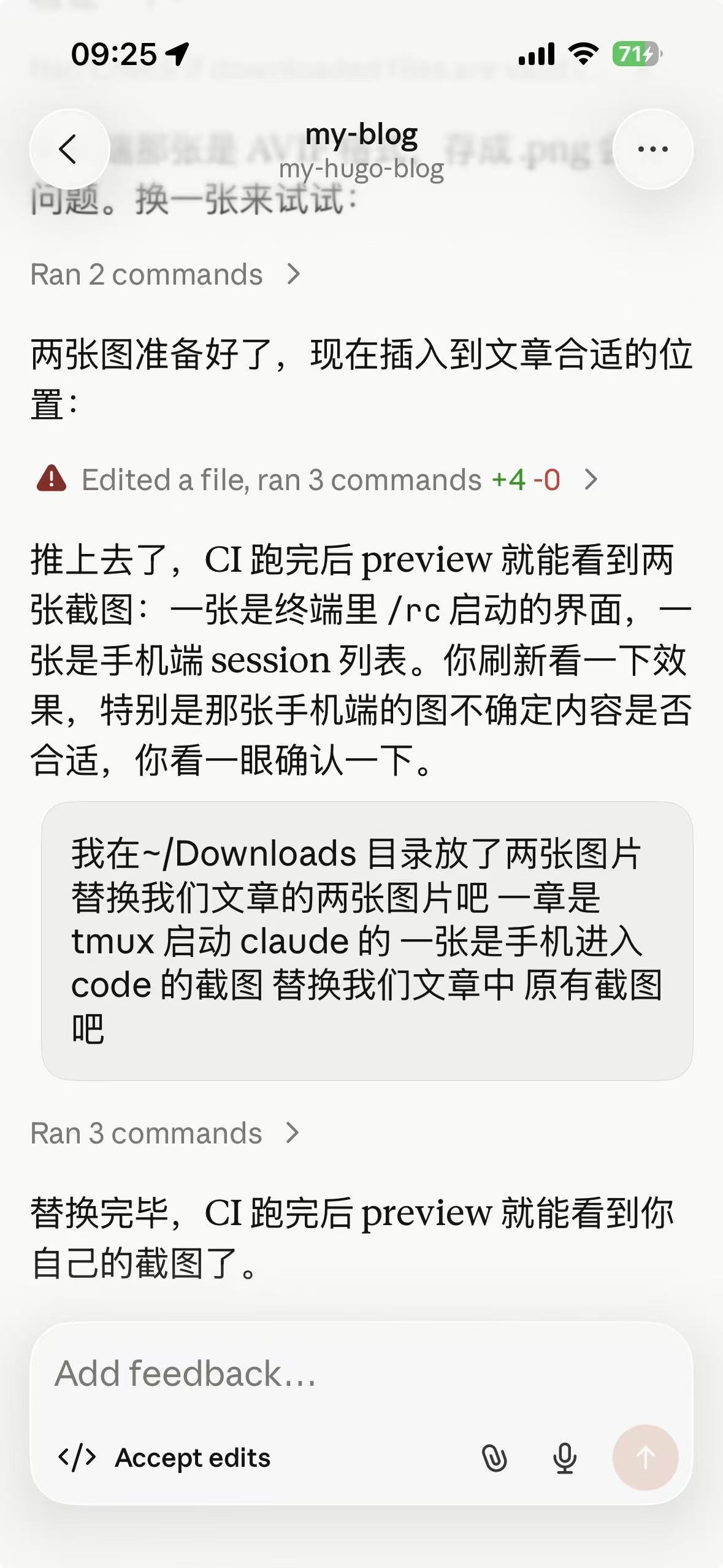
But persistence isn’t just “the process doesn’t die” — more importantly, it means seamlessly handing off between devices. Start a task on the subway, sit down at your computer and pick it right back up; remember something at night, pull out your phone and keep pushing forward — same session, same context, no re-explaining the background, no logging in and out. That’s what “work from anywhere” actually means.
Platform support: iOS and Android are both supported; the VS Code extension also enables Remote Control with /rc. Requires a Claude Pro subscription ($20/month) or higher, and Claude Code v2.1.51+.
A Few Tips for a Smoother Experience
Voice Input: Use a Third-Party Keyboard, Not Claude’s Built-In
The Claude App has native voice input on mobile, but its Chinese support has never been great — accuracy is inconsistent, technical terms make it noticeably worse, and mixed Chinese-English input is basically unusable. This isn’t an occasional glitch; it’s been the long-running status quo.
Switch to WeChat Keyboard or Doubao Input instead:


Both of these keyboards handle mixed Chinese-English input solidly — you can drop English words or technical terms into a Chinese sentence and the recognition stays accurate. That’s more than enough for everyday development. Hold the mic button, say what you need, glance at the text to confirm, then send it to Claude. That one extra confirmation step saves far more time than sending garbled text and then having to correct it. Try both and stick with whichever feels better.
Don’t Try to Do Too Much at Once: Frame First, Fill in Later
This is the most important way to work on mobile, whether you’re writing content or building features — the principle is the same: set the structure first, then fill in the details.
When writing a blog post, have Claude sketch the overall framework first. Once you confirm the logic holds up, write it section by section. Confirm one section, then move to the next. This post was written exactly that way — it’s far smoother than dumping all your requirements at once and dealing with heavy revisions at the end.
Same principle for feature development — break the module into clear pieces, define what each part needs to do, then tackle them one by one rather than throwing the entire requirement at Claude all at once.
Typing on a phone is slow, and when a complex task is hard to articulate, flip it around and have Claude ask you the questions:
I want to implement [goal], and it's fairly complex. Please ask me
one question at a time to clarify the requirements before starting.
Skills: Install as Needed, Not All at Once
You don’t need to install a bunch upfront — just go by what your workflow actually requires:
Content creation (writing posts, publishing to WeChat): wechat-draft-publisher is a must-have — it pushes articles directly to your WeChat Official Account draft box, but you’ll need to configure your AppID and AppSecret ahead of time. For image generation, pick a skill based on whatever tool you’re using.
Development work: Enhancement skills like superpower are worth installing — they meaningfully expand Claude Code’s baseline capabilities. For everything else, install on demand. If you’re not sure what to install, just tell Claude what you’re trying to do and have it find and install the right skill for you.
Push Notifications: Let Claude Tap You When It’s Done
Enable Claude App notifications in your phone’s system settings. This is a key piece of the whole mobile experience. When Claude finishes a long task or needs your input to proceed, it proactively pushes a notification to your phone — you don’t have to sit there watching the screen. Go do whatever you need to do; come back when the notification arrives.
One Thing That Needs to Be Said Clearly: You’re Responsible for the Outcome
Doing complete development work on a phone is entirely feasible. But there’s one thing that has nothing to do with what device you’re using — you are responsible for the final result.
AI can write code, run tests, and open PRs. But it doesn’t bear the consequences. A database migration that goes wrong, a permissions misconfiguration, a bug in payment logic — that’s on you, not Claude. Whether you’re on your phone or at your desk doesn’t change that. What changes it is whether you actually paid attention.
For high-risk operations, the right move isn’t “switch to my laptop first.” It’s: if you’re not sure, don’t submit.
Walk through the logic in conversation first — have Claude explain what each step does, have it ask you about the expected outcome at every key decision point, until you can articulate the full logic yourself. Then issue the execution instruction. At a computer, you can add another layer of manual review by reading the code directly. On a phone, working through it in conversation gets you to the same place — it just requires a bit more patience.
This is the core principle of human-AI collaboration: AI handles execution, humans handle judgment. The most common failure mode in this workflow is laziness — outsourcing the judgment too.
Environment Checklist
| Category | Tool | Notes |
|---|---|---|
| Persistent sessions | tmux | Process keeps running in background, accessible across devices |
| Remote control | Claude Code v2.1.51+ | Pro subscription, start with claude --rc |
| Mobile client | Claude App (iOS / Android) | Connect via Code page, shares session with desktop |
| Preview environment | Publicly accessible URL | Required to verify results on phone |
| Repo access | GitHub CLI (gh auth login) | Required for Claude to operate CI/CD |
| Server access | SSH passwordless login | Required for Claude to operate the server remotely |
| Keyboard | WeChat Keyboard / Doubao Input | Better mixed Chinese-English accuracy than Claude’s native voice |
Back to the question at the start: Sunday afternoon, couch, cup of coffee — can you actually write code, deploy it, and ship it from your phone?
Yes. But the more accurate way to say it is: this approach doesn’t change where you work, it changes when you can start. The commute, a few minutes waiting for someone, a hotel room on a business trip — every fragment of time can actually move something forward, instead of just checking messages and watching status updates.
Phones won’t replace computers, just like computers didn’t replace pen and paper. What they expand is the boundary, not replace the existing way of working. What really changes is the assumption that “you have to be at a computer to get real work done.” That assumption no longer holds.
References