How to Activate Windows After Cloud Migration?
When using a full-machine migration approach (Re-Host) to migrate Windows to a cloud platform, the underlying hardware changes, which invalidates the Windows license key and requires re-activation. For enterprise users, how can you protect your existing investment and activate the system in a legitimate way without incurring additional costs? This article provides a detailed breakdown based on best practices from real-world projects.
Why Does the License Become Invalid After Migration?
According to Microsoft: when Windows is installed, the digital license is associated with the device’s hardware. If you make significant hardware changes to the device (such as replacing the motherboard), Windows will be unable to find a license matching the device, and you will need to re-activate Windows to get it working again.
Based on the migration approach used by the cloud-native migration tool HyperMotion — which performs block-level copying at the underlying layer — once the system is started, the underlying hardware changes to the cloud platform’s virtual devices. This hardware change causes license invalidation. Because of how cloud platforms work, this change is unavoidable, so there is no way to prevent this problem at the virtualization layer. Therefore, when migrating or setting up disaster recovery on public or private clouds, different approaches are needed to address this.
Public Cloud
According to current public documentation, the vast majority of public clouds use KMS to automatically activate Windows.
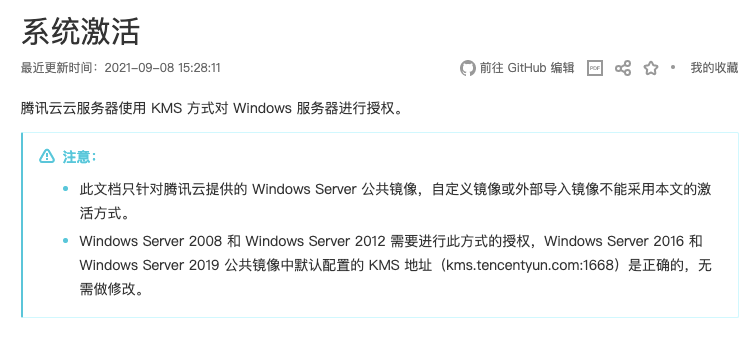
You can also configure automatic activation via a startup script:
cscript /nologo %windir%/system32/slmgr.vbs -skms kms.tencentyun.com:1688
cscript /nologo %windir%/system32/slmgr.vbs -ato
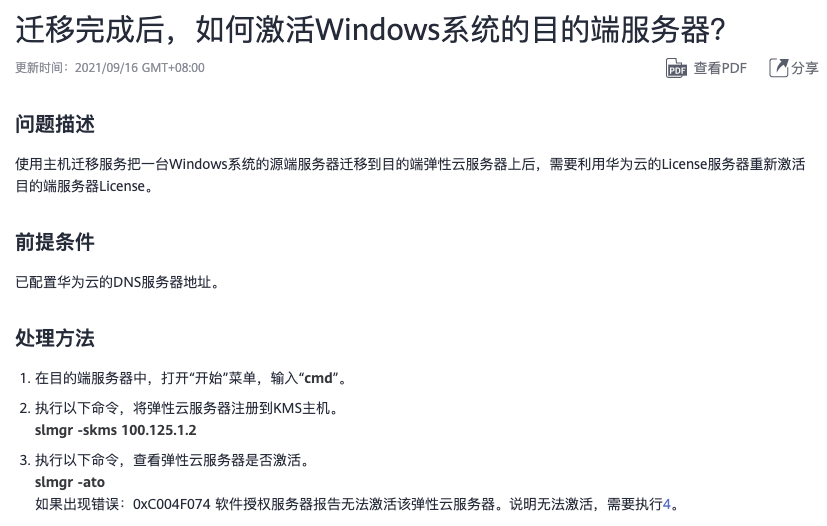
Huawei Cloud uses a similar approach — batch activation through an internal KMS server.
Retaining the Original License
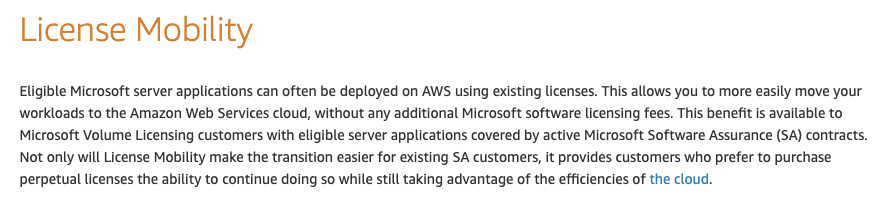
This approach has only been documented in AWS materials. It is called License Mobility, but it requires contacting the original license reseller to submit the relevant application.
Private Cloud
Private cloud customers are mostly enterprise clients who have typically purchased legitimate volume licenses. Volume licenses come with a certain degree of flexibility in the number of activations allowed. One prerequisite must be made clear: enterprise users must have purchased legitimate volume licenses — retail licenses are outside the scope of this discussion.
First, it is important to clarify a concept: a license and the number of activations are two completely different things. The number of licenses is fixed, while the number of activations is flexible. This flexibility is exactly what allows us to resolve the license activation issue after migrating business systems. The approach is as follows:
- Suppose a user has purchased 10 Windows Server licenses. In the Microsoft Volume Licensing Service Center, the user should have 50 available activations.
- The user has already installed and activated 10 Windows Server instances and now needs to migrate them.
- Using HyperMotion’s live migration capability, Windows is migrated from a VMware environment to the cloud platform in an agentless manner, with no impact on business continuity.
- The user wants to use HyperMotion’s migration validation feature to quickly build a simulation environment. All 10 Windows instances are started on the cloud platform (while the original business systems continue to run normally).
- Because the virtualization layer has changed, the started Windows instances are in an unactivated state (Windows 2012, if connected to the internet, will automatically attempt to activate), but this does not affect business system validation.
- After the customer validates the environment and confirms that the business is operational, they prepare for the system cutover.
- After the final incremental sync, the original business systems are shut down, the business systems are started in the production VPC with IP addresses unchanged.
- After the cutover, Windows instances are still in an unactivated state. While connected to the internet, the original serial numbers are used to re-activate them.
- The business system migration is complete, and Windows is activated.
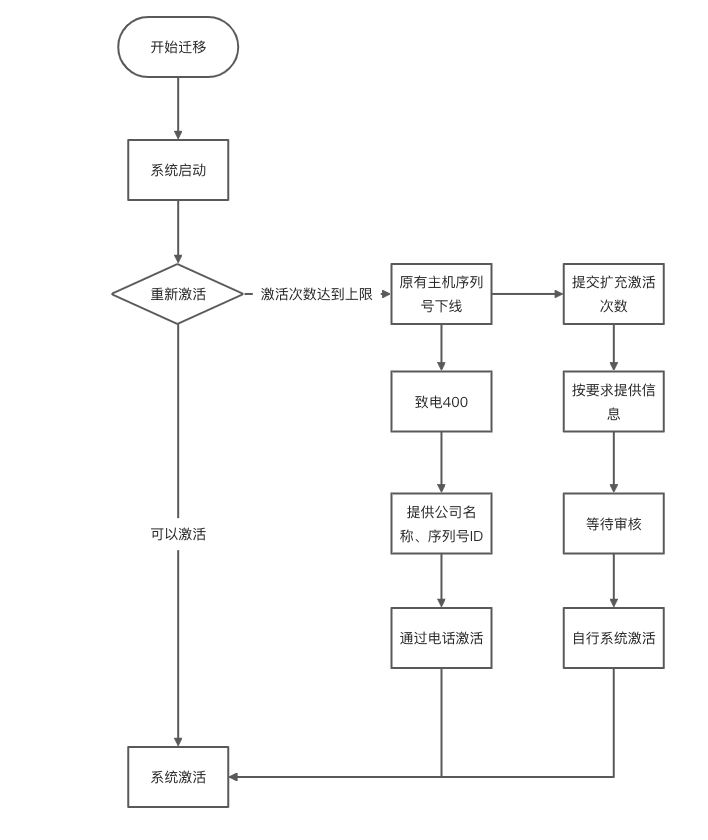
If the activation count reaches its limit, what should you do? After consulting Microsoft’s 400 hotline, we learned that for enterprise volume licenses, the activation count can be expanded free of charge. Simply submit an application at this link (https://support.microsoft.com/en-us/supportrequestform/2afa6f15-b710-db46-909a-8346017c802f?sl=en&sc=US). After Microsoft completes verification in approximately 5 business days, users can log into the Microsoft Volume Licensing Service Center to check the available activation count, or contact Microsoft directly via the 400 hotline to discuss expansion options. Note that this option is only available once the activation limit has been reached.
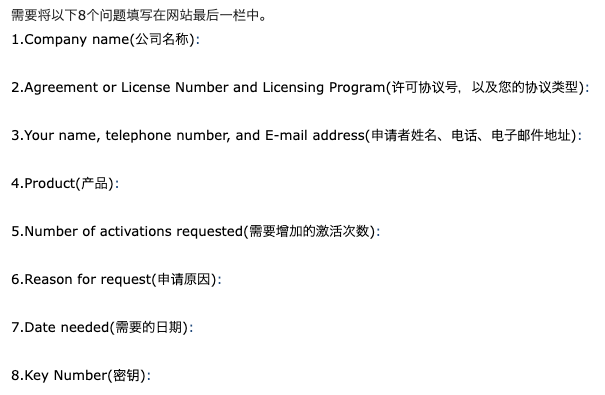
The overall workflow is shown in the diagram below:
Will Windows Automatically Restart If Not Activated?
According to feedback from Microsoft’s 400 hotline, due to genuine software protection policies, Windows may trigger various random events — restarting is one of them, but it does not occur 100% of the time. The issue that is guaranteed to appear periodically is the activation reminder.
Summary
- For public cloud environments, it is recommended to use the KMS service provided by the public cloud platform.
- For private cloud environments, if you have purchased enterprise volume licenses, you do not need to worry about license activation issues — Microsoft will help you resolve the activation problem.